Ever wonder what makes a play legendary? It’s often the tech you control.
This isn’t about magic gear. It’s about improving your performance. We’re talking about player-side tech—tools that focus on you.
Imagine a baseball coach analyzing your swing in slow motion. Player-side tech does the same for your game. It tracks your focus, precision, and mental load to improve your play.
Specialized hardware and training platforms analyze your actions. A few milliseconds on a 240Hz monitor can give you an edge. High refresh rates also enhance your performance.
This innovative tech for players makes top-level insights available to all. Simple reaction time tests are just the start. Let’s see how you can use this data to get better.
Eye Tracking 101: fixation heatmaps, saccades, tunnel vision flags
Imagine having a map of exactly where you look during a match—that’s the power of eye tracking for esports. This tech, once only in labs, is now a key part of advanced training. It helps pros and aspiring players understand their visual habits. We’ll break down three core ideas you need to know.
Think of your eyes as your most important controller. Where you look and how fast you see information decides wins or losses. By monitoring eye movement, you get data to train smarter, not just harder.
Before we get into the specifics, let’s set the stage. Eye tracking gives you a behind-the-scenes look at your gameplay. It shows patterns you might not even feel. Now, let’s explore the first tool.
Fixation Heatmaps
A fixation heatmap is a colorful report of your gaze. It shows where your eyes “stuck” on the screen the longest. Bright, warm colors (like red and yellow) mean long stares. Cool colors (like blue) mean quick glances.
This is gold for analysis. Are you staring at your crosshair while a flanking enemy slips by? The heatmap reveals it. It tells you if you’re focusing on the right threats or missing vital cues.
For example, in a tactical shooter, a good heatmap shows frequent checks on the mini-map and doorways. A poor one shows all the heat on one spot. This visual feedback is your first step to better visual attention.
Saccades
Saccades are your eyes’ rapid jumps between points of focus. They are not smooth scans; they’re fast, jerky movements. Your brain processes information mostly during the brief stops (fixations) between saccades.
In esports, faster and more accurate saccades mean quicker reactions. If your eyes dart to the right target faster, you gain precious milliseconds. Training can help optimize these movements, making your visual scanning more efficient.
Tunnel Vision Flags
Have you ever been so focused on one enemy that you didn’t see their teammate right beside them? That’s tunnel vision. Under pressure, your field of attention narrows dangerously.
Eye tracking software can flag these moments. It notices when your gaze gets “stuck” and peripheral movement is ignored. Knowing when this happens lets you create drills to practice maintaining wider awareness, even in clutch situations.
| Concept | What It Is | Why It Matters for Esports | Practical Training Tip |
|---|---|---|---|
| Fixation Heatmap | A visual map showing where your gaze lingered longest on screen. | Reveals your focus patterns; identifies if you’re missing key information. | Review heatmaps after matches. Practice consciously scanning high-priority areas. |
| Saccades | The quick, jumping movements your eyes make between points of focus. | Faster, precise saccades lead to quicker reaction times and better target acquisition. | Use aim trainers with wide, multi-target scenarios to practice rapid eye shifts. |
| Tunnel Vision Flag | A software alert when your gaze becomes overly fixated, ignoring peripheral cues. | Prevents costly mistakes where you become blind to flanking enemies or map changes. | When flagged, practice drills that force you to track multiple moving objects at once. |
Understanding these three elements gives you a complete map of your visual performance. This is the foundation of using eye tracking esports data effectively. You move from guessing to knowing exactly what to improve.
Now, with this knowledge, you’re ready to turn these numbers into actionable drills. We’ll cover that later. First, let’s look at how your mouse and keyboard inputs tell their own story.
Input Telemetry: CPI, Hz, click latency, angle snapping checks
From your click to the on-screen headshot, it’s a data journey. Your mouse and monitor translate your movements into game commands. Understanding this process is key to modern mouse sensor telemetry. It turns “my shot didn’t register” into specific, fixable numbers.
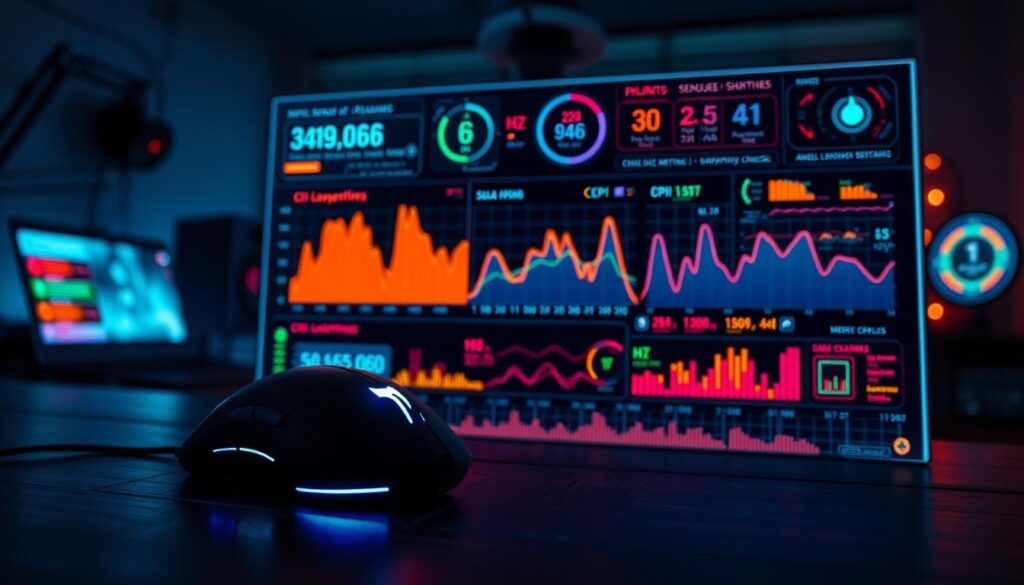
Let’s break down the key metrics. This is the innovative tech for players that turns intuition into information.
CPI, Hz, and Click Latency: The Responsiveness Trio
CPI is the truth behind DPI. It shows how many data points your mouse sensor reads per inch. A higher CPI means more data about your hand motion. It’s like the resolution of your intent.
Hz, or refresh rate, is how often your monitor updates the picture. A higher Hz means you see your actions faster. Jumping from 60Hz to 240Hz can show an enemy 12 milliseconds sooner. That’s the difference between reaction and prediction.
Click latency is the total delay from pressing the mouse button to seeing the action. A low click latency makes games feel snappy and direct.
Here’s a quick look at how common refresh rates affect your perception:
| Refresh Rate (Hz) | Frame Time (ms) | Perceived Feel |
|---|---|---|
| 60 Hz | ~16.7 ms | Standard, can feel choppy |
| 144 Hz | ~6.9 ms | Much smoother, competitive standard |
| 240 Hz | ~4.2 ms | Extremely fluid, minimal motion blur |
Pairing a high-CPI sensor with a high-Hz monitor creates a seamless flow of data from your hand to your eyes.
Angle Snapping Checks: Is Your Sensor “Helping” Too Much?
Angle snapping is a stealthy setting. It “corrects” your movements. If you try to flick your mouse in a straight line, the sensor might output a perfect line, even if your hand wavered.
For office work, that’s fine. But for gaming, it’s a problem. Angle smoothing destroys raw precision. You lose the subtle, corrective micro-movements that make your flicks accurate.
How do you check for it? It’s simple:
- Open any basic drawing program.
- Slowly try to draw a straight horizontal or vertical line.
- Now, try to draw a slow, deliberate diagonal line.
If your diagonal line comes out jagged, but your straight lines are smooth, your sensor might be applying angle snapping. For true mouse sensor telemetry, you want this feature off. You want every nuanced movement to be faithfully reported to the game.
Mastering these concepts—CPI, Hz, latency, and raw sensor truth—puts you in control. This innovative tech for players demystifies your gear. You stop guessing why a shot missed and start knowing how to adjust your setup for that perfect, pixel-perfect flick.
System Metrics: frame time over FPS, input lag budgets, VRR/G‑Sync basics
Smooth gaming isn’t just about FPS. It’s about when those frames arrive. A high FPS number looks great but doesn’t tell the whole story. We need to look at three key system metrics: frame time consistency, total input lag budget, and adaptive sync technologies.
Frame Time Over FPS
Think of FPS as a count of packages delivered in a second. Frame time is the timing between each delivery. A game at 60 FPS should deliver a new frame every 16.7 milliseconds.
If one frame takes 30ms and the next 10ms, you’ll feel a stutter. This is even if the average FPS is 60.
This is why frame time analysis is key. It looks at the consistency of those intervals. A smooth experience has steady frame times. Modern tools can show you where hitches come from.
Inconsistent frame times cause micro-stutters. These can throw off your aim and break immersion. Prioritizing consistent frame pacing often feels smoother than chasing a slightly higher, but erratic, FPS count.
| Metric | What It Measures | Why It Matters | Ideal Scenario |
|---|---|---|---|
| FPS (Frames Per Second) | Total frames rendered in one second. | Gives a general performance benchmark. | High and stable (e.g., 100+ FPS). |
| Frame Time | Time interval between individual frames (in milliseconds). | Determines smoothness and stutter-free gameplay. | Extremely consistent values (e.g., all frames at 10ms). |
| 1% & 0.1% Lows | The worst-performing frames, highlighting bottlenecks. | Reveals momentary dips that ruin fluidity. | As close to the average FPS as possible. |
Input Lag Budgets
Your input lag budget is the delay from your click to the action on screen. Every hardware piece adds to this budget.
Let’s break it down:
- Mouse & Keyboard: The time for a switch to register (click latency).
- PC Processing: Game engine calculation, rendering, and frame queueing.
- Monitor Display: Pixel response time and the scan-out process.
These milliseconds add up! A budget of 50ms feels instantaneous, while 100ms starts to feel sluggish. To manage yours, measure each part. Use a monitor input lag calculator to estimate your display’s contribution and see where you can shave off precious milliseconds.
VRR/G-Sync Basics
Screen tearing happens when your GPU sends frames faster or slower than your monitor’s fixed refresh rate. Old-school V-Sync fixed tearing but introduced massive input lag and stuttering.
Enter Variable Refresh Rate (VRR) technologies: NVIDIA’s G-SYNC and AMD’s FreeSync. These are game-changers. They allow your monitor’s refresh rate to dynamically, instantly match your GPU’s frame rate.
The result? Buttery smooth gameplay with no tearing and virtually no added lag. It’s a foundational upgrade for any serious setup. As the data confirms, adaptive sync is now a must-have feature for gaming monitors. It effectively makes inconsistent frame times less noticeable, giving you a cleaner visual experience even when your FPS fluctuates.
Remember, pairing a VRR-capable monitor with a compatible GPU unlocks this smoothness. It’s one of the best investments you can make for your system metrics and overall gaming satisfaction.
Light Wellness Layer: Sleep and Simple Reaction Tests (Nonmedical)
Let’s move from tech to biology. A tired gamer can’t use the best tech. This part is about your most important piece of equipment: you. We’re not doctors, but we know how sleep, reaction speed, and stress levels affect your gameplay. It’s a simple wellness check for your competitive edge.
It’s a holistic approach. The right gear and a sharp mind are the best combo. We’ll look at how sleep reboots your brain, quick reaction tests warm up your brain, and heart rate shows your focus.
Sleep: Your Secret Weapon for Cognitive Speed
Quality sleep is more than feeling rested. It’s your brain’s maintenance mode. During sleep, your mind learns and clears out mental clutter. This means better in-game consistency, faster decisions, and focus during long sessions.
Ever feel slow and foggy after a late-night grind? That’s your brain asking for a reset. Prioritizing 7-9 hours of sleep is key for performance.
For evening gaming, think about your screen’s light. Many monitors have a Low Blue Light mode. This setting reduces eye strain and helps you wind down, making it easier to sleep after gaming.
Simple Reaction Tests: Warming Up Your Brain
Just like warming up muscles before sports, you can warm up your brain. Simple reaction tests are a great way to check your mental sharpness.
How does it work? You use a website or app to click or tap as soon as you see a visual cue. It measures your reaction time in milliseconds.
Try a quick test in the morning a few days a week. Track your average time. You might notice it’s slower after a bad night’s sleep or faster when you’re well-rested. It’s a personal metric that shows your body’s readiness.
Understanding HR/HRV Basics
Let’s explore HR/HRV basics. HR is Heart Rate (beats per minute). HRV is Heart Rate Variability, which measures the tiny changes between each heartbeat. It’s a fascinating indicator of your nervous system.
A higher HRV suggests your body is well-recovered, adaptable, and less stressed. A lower HRV can mean fatigue, stress, or pushing too hard. You don’t need a medical device; many fitness wearables and apps can give you insights into your HR/HRV basics.
For gamers, a low HRV might mean it’s time to rest or relax. It’s another data point, alongside sleep and reaction tests, to manage your human hardware.
| Wellness Factor | What It Measures | Simple Tracking Method | Direct Performance Impact |
|---|---|---|---|
| Sleep Quality & Duration | Brain recovery & cognitive function | Consistent bedtime, sleep tracker apps | Faster decision-making, improved consistency |
| Simple Reaction Time | Neural processing speed | Free online reaction test websites | Quicker in-game reflexes, tighter input timing |
| HRV (Heart Rate Variability) | Body’s stress & recovery state | Fitness bands, smartphone apps with HR monitoring | Indicates optimal times for intense practice vs. rest |
| Evening Screen Habits | Exposure to sleep-disrupting blue light | Using monitor’s Low Blue Light mode after sunset | Reduces eye strain, promotes better post-game sleep |
By focusing on these areas, you create a powerful feedback loop. You learn what conditions help you perform at your best. Remember, the goal isn’t to become a biohacker overnight. It’s about making small, informed choices to stay sharp and ready to play your best.
Build a Budget Setup: free/cheap alternatives and DIY tests
Innovative tech for players isn’t about spending more; it’s about spending smart and using what you have. You don’t need a pro contract or a lot of money to start understanding your gameplay. The key principles we’ve talked about—measuring input, analyzing frames, checking your reactions—can be applied at any budget. Your goal is to be resourceful, seeing your entire setup as a system you can measure and improve without spending a lot.
Let’s start with your first and often most impactful upgrade: the monitor. Choosing wisely here can give you the biggest bang for your buck. Data shows TN panels often have faster response times at a lower cost than IPS panels. For fast-paced competitive games, that speed is key.
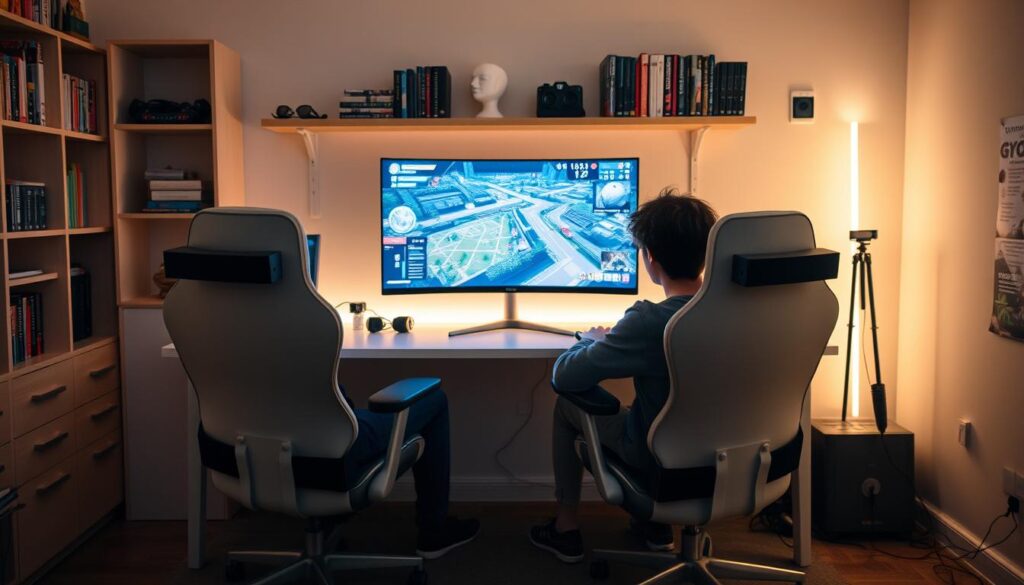
Refresh rate is another key factor. Source 1 breaks down the tiers: 60Hz, 144Hz, and 240Hz. For a budget-conscious gamer, jumping from 60Hz to 144Hz is a huge leap. A 144Hz TN panel monitor is a great starting point, giving you smooth motion without the high price of a high-end IPS or a 240Hz display.
To help you decide, here’s a clear comparison of panel types for budget-focused players:
| Feature | TN Panel (Budget-Friendly) | IPS Panel (Premium Budget) |
|---|---|---|
| Typical Response Time | Very Fast (1ms common) | Good to Fast (4ms-1ms) |
| Cost | Lower | Higher |
| Color Accuracy & Viewing Angles | Fair, colors can wash out at an angle | Excellent, consistent colors |
| Best For | Esports, fast-paced FPS games where speed is king | Games with rich visuals, content creation, or multi-monitor setups |
| Our Budget Verdict | Top pick for pure performance per dollar | Worth it if visual quality is a high priority |
Once your display is sorted, turn to free software. Tools like MSI Afterburner with RivaTuner Statistics Server can show your frame times and framerates. Use the UFO Test website to check for monitor ghosting or blur. You can even test your click latency with simple browser-based tools. These free programs give you the same kind of data pros look at!
Your own body is part of the system, too. You don’t need a lab to check basic reaction time. Use free smartphone apps or websites for simple visual or auditory reaction tests. Want to check your posture or desk setup? Repurpose an old webcam to record a short session and review it. Are you sitting too far from the monitor? Is your arm angle straining your wrist? This is DIY analysis at its best.
Don’t forget the free settings already on your computer. Windows Game Mode, a high-performance power plan, and making sure your graphics drivers are updated can shave off precious milliseconds of input lag. This is the essence of innovative tech for players—it’s a mindset of curiosity and optimization.
Start with one change. Maybe it’s enabling a higher refresh rate in Windows settings you didn’t know about. Or running a free frame-time analysis during your next gaming session. Each small test and tweak adds up, building your understanding and giving you a tangible edge. You have more tools at your disposal than you think!
Turn Numbers into Drills and Settings Changes
Your metrics are like a detailed map. The drills and settings changes are your journey to better gameplay. This is where innovative tech for players turns numbers into real skill.
Did your eye-tracking heatmap show tunnel vision? Design a simple drill. Focus on a central target while noting objects in your periphery. Repeat this to train your visual awareness. If your input latency is high, check your mouse software and Windows settings. Small tweaks can make a big difference.
Frame time graphs spiking? Inspired by systems like OMEN, adjust in-game graphical settings. Lowering one demanding effect can make your game smoother. Your data becomes a personal playbook for practice.
This process mirrors advancements in other fields. For example, exploring data-driven drill design in sports training shows how professionals use feedback. The same principle applies here.
Our mission is to make this knowledge available to everyone. You don’t need a lab. Your collected data points the way. Turn those insights into focused drills and optimized settings. Move from guessing to targeted improvement. Start applying your findings today for more confident play.